Plan break-even: a step-by-step tutorial
Plan break-even, step by step: pick a plan, set a mix, read the verdict, the chart and the effective rates, then share it. With screenshots.
The plan break-even calculator compares a monthly subscription plan with pay-as-you-go billing. This walkthrough covers every step, from an empty page to a shareable result. New to subscription quotas? Read how AI subscription credits work first.
Step 1: open the page
Open /tools/plan-break-even/. The page starts empty: no plan and no models. No plan is favoured, so the first number you see is yours to define.
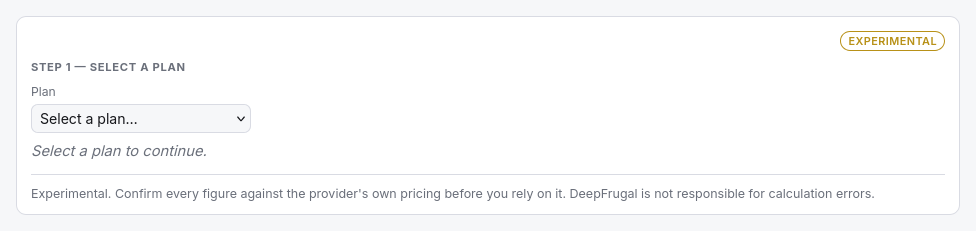
Step 2: pick a plan
Choose a plan from the Plan list. Plans are grouped by gateway. Only plans with a published quota appear, because the calculator needs a quota to value usage.
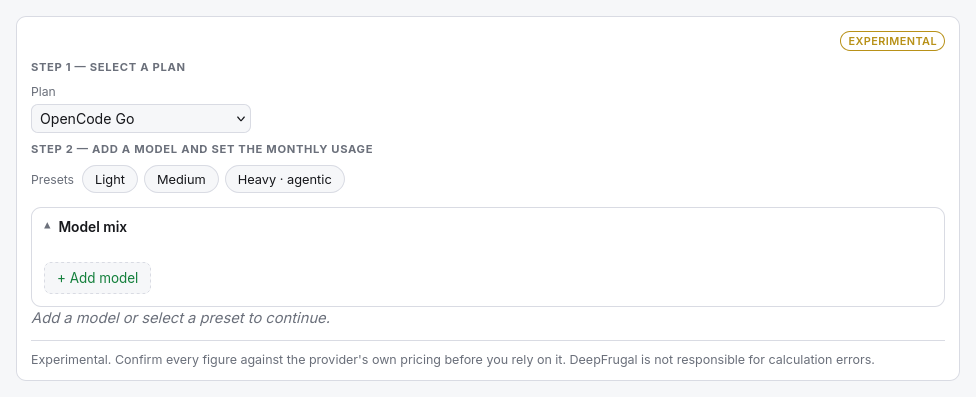
Step 3: add models and set the monthly usage
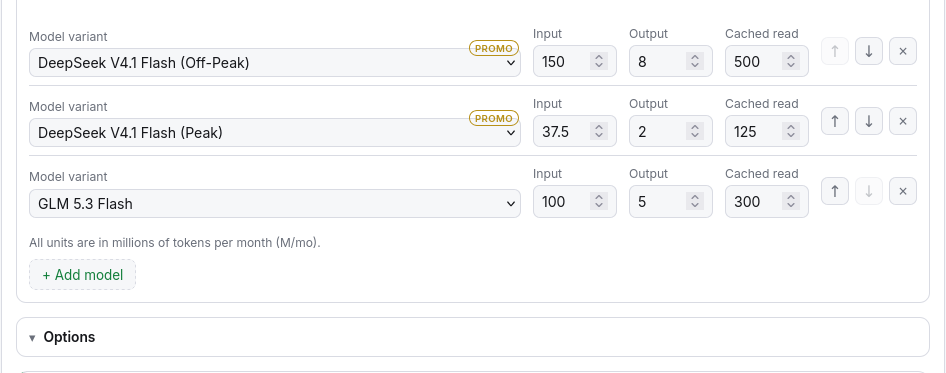
Load a preset — Light, Medium or Heavy · agentic — or build your own mix under Model mix. Each row is one model variant. Set the monthly usage for each token type:
- Input — fresh prompt tokens, in millions per month.
- Output — generated tokens, in millions per month.
- Cached read — prompt tokens served from cache, when the model bills them.
- Cached write — tokens written into the cache, when the provider charges.
Use the arrows to reorder the mix. The order matters: the plan grants one shared budget, and the calculator spends it model by model in the listed order.
Step 4: read the result
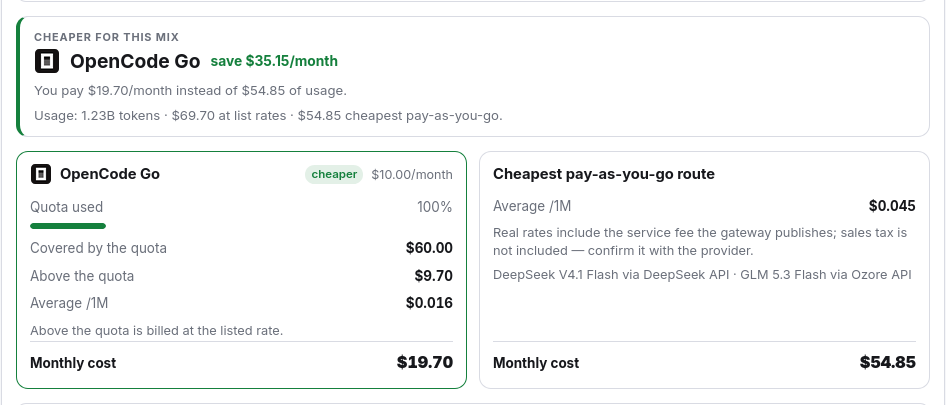
The callout states which option is cheaper and by how much per month. Two cards compare the Subscription with the cheapest alternative: the Quota used, what is Covered by the quota, what falls Above the quota, the Average cost per 1M tokens and the Monthly cost. The cheaper card carries a badge.
Step 5: read the chart
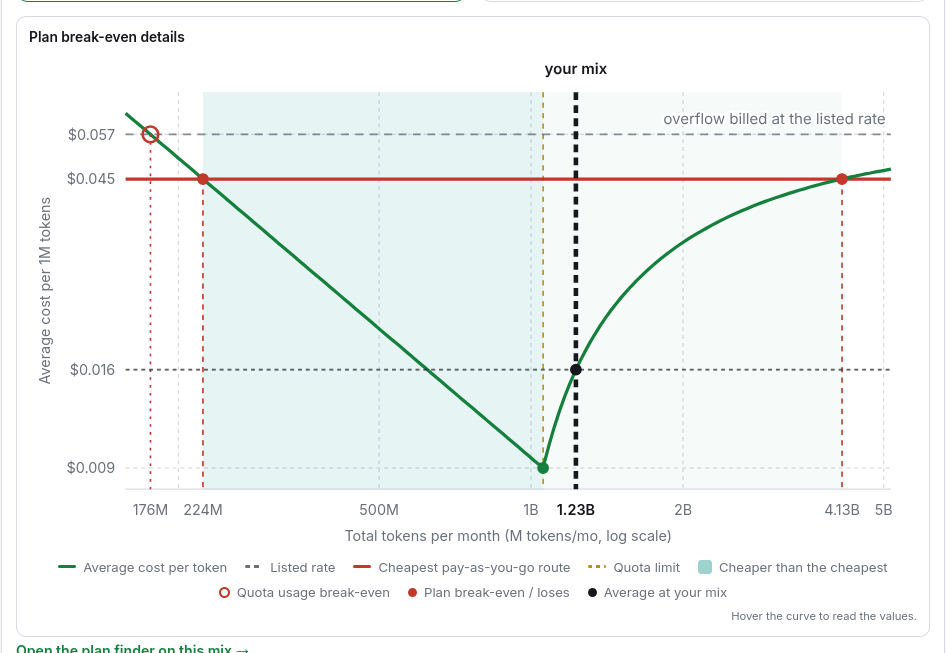
Plan break-even details draws the average cost per 1M tokens as your monthly usage grows. The average falls inside the quota and reaches the plan's effective rate at the quota limit; above the limit it climbs back towards the overflow base. The shaded band is where the subscription is cheaper than the cheapest pay-as-you-go route. The markers show the quota usage break-even (below it you pay more per token than the listed rate), the plan break-even, the point where the subscription loses to the cheapest alternative, and your own mix.
Step 6: see how the quota is consumed
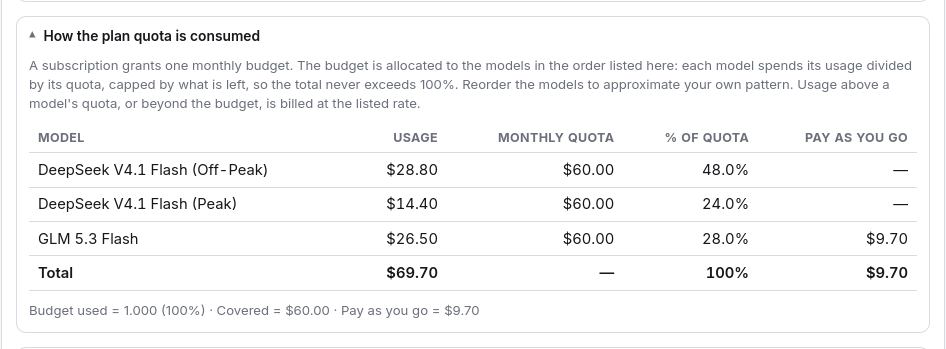
Open How the plan quota is consumed for the per-model breakdown. The quota is one shared monthly budget: each model spends its usage divided by its published quota, capped by what is left, so the total never exceeds 100%. Reorder the models to change which one is covered first.
Step 7: compare listed and effective rates
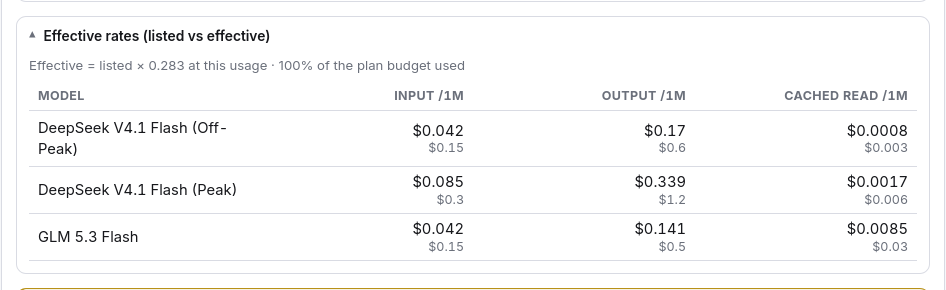
Open Effective rates (listed vs effective) to see the listed and effective price per token type. The effective rate spreads the plan cost over the usage you entered, so it moves with your mix.
Step 8: switch the overflow base and toggle promos
Open Options to change two controls:
- Overflow billed at — what usage above the quota costs. Cheapest pay-as-you-go uses the cheapest real route found for each model, so the plan is compared against the best metered alternative.
- Promo prices — when off, every figure uses the pre-promo list rates and quotas.


Step 9: share the calculation
The page writes its state to the URL. Change the plan, the models, the usage or the options, and the address bar follows. Click Share to copy a link that reopens the same calculation. Under the result, Open the plan finder on this mix → carries the mix to the plan finder, which ranks every plan and gateway on the same usage.
The calculator is marked Experimental. Confirm every figure against the provider's own pricing before you rely on it.
Next step
Run your own numbers on the plan break-even calculator. To rank every subscription plan and pay-as-you-go gateway on your mix, open the plan finder. To compare two subscriptions on one workload, open the plan comparison tool.
Frequently asked questions
What does the plan break-even calculator compare?
One subscription plan against paying per token for the same monthly workload. It values your mix at listed rates, marks the cheaper side and draws the cost curve across your usage.
Which plan should I pick first?
Any subscription plan that publishes a quota. The plan picker groups them by gateway. Add your models after the plan.
How do I set the monthly usage?
Enter input, cached read, cached write and output tokens per model. All units are millions of tokens per month.
What is the overflow base?
What the plan charges for usage above its quota. You choose the model's listed rate (the default), the cheapest pay-as-you-go rate found for it, or the cheaper of the two.
Why do some plans show no effective price?
They publish limits without a token or credit quota, so an effective rate cannot be computed. DeepFrugal shows the API rate as a secondary line instead.
Can I share a calculation?
Yes. The calculator keeps its state in the URL and the Share button copies the link.